Choose what to sync
Pick the tables a connection lands, how each one is read, and the cursor and primary key that incremental and deduplicated modes need.
A source offers tables, and you decide which of them land in your warehouse. A table here is anything the source offers as one set of records: a table in a database, a tab in a spreadsheet, a kind of record in a SaaS system such as invoices or contacts. Each table you turn on lands in your warehouse as raw.<connection>__<table>.
You choose tables once, at the last step of adding a connection, and you can change the choice at any time.
Open the picker
- For a new connection, the picker is the last step of the flow, headed Choose what to sync.
- For a connection that already exists, open it, go to the Status tab and press Edit tables in the Tables panel.
sanda asks the source what it offers each time the picker opens, and the message Asking your source what it offers: this runs a live check and can take a minute shows while it waits. During the new-connection flow it reuses the answer it already has, so it does not ask twice.
On a new connection every table starts on. On an existing one the picker shows what you saved last time. Nothing changes until you press the save button.
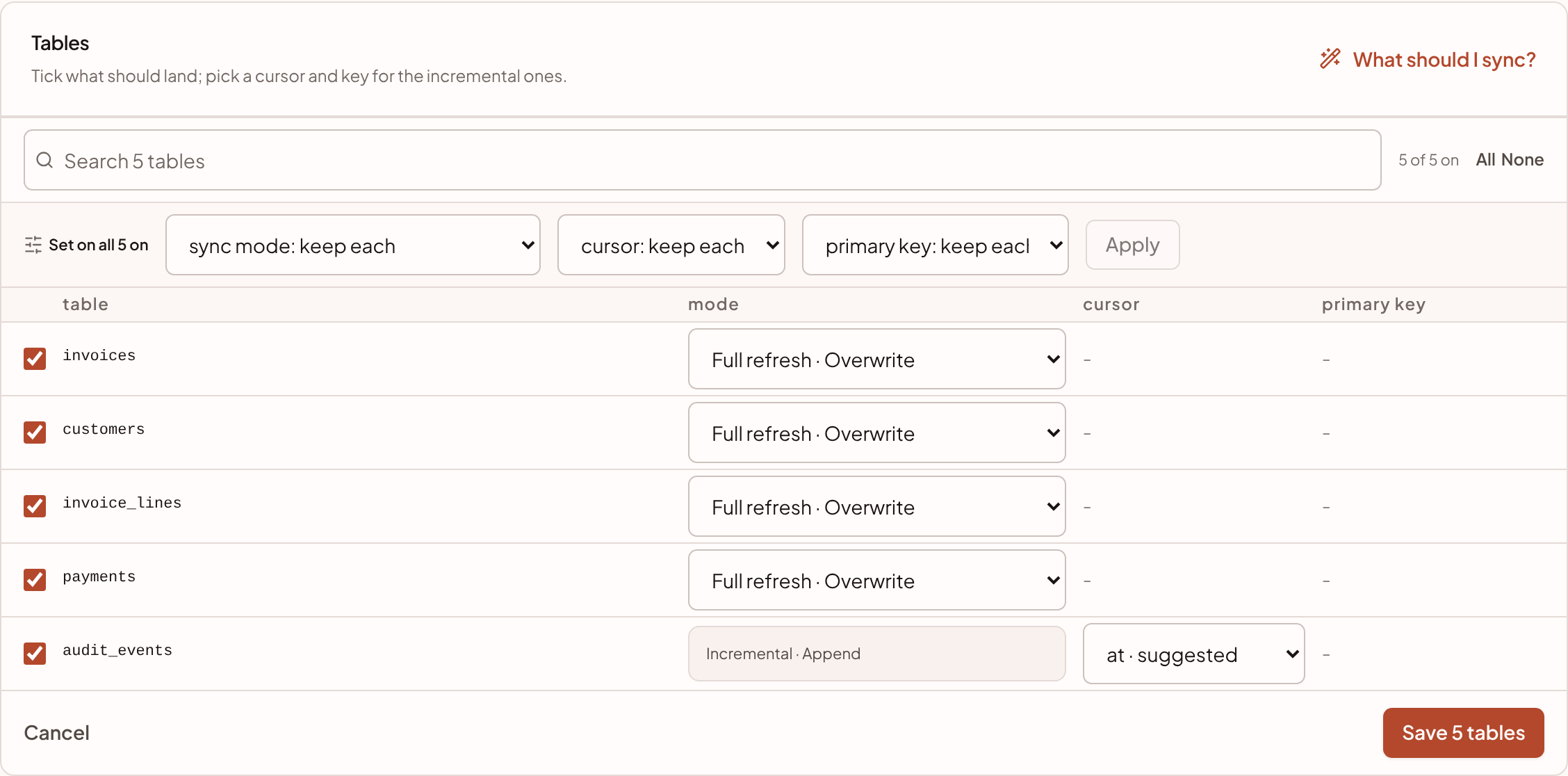
The picker, row by row
| Part | What it does |
|---|---|
| Search N tables | Filters the list by name. Useful for a source with hundreds of tables |
| N of M on | How many tables are ticked |
| All and None | Tick or untick every table you can see. With a search active they act only on the matches |
| Tick box | Turns a table on or off. A table that is off stays at the source and is not sent |
| mode | How the table is read on each run. See Sync modes |
| cursor | The column that tells sanda which rows are new or changed. Only for incremental modes |
| primary key | The column that identifies a row. Only for deduplicated modes |
A table that is off keeps its row but goes quiet, so ticking it back on does not move the list.
Choose a mode
The mode list offers the sync modes the source supports for that table. A table that supports only one shows it as fixed text, and hovering explains that it is the only mode the source offers for the table.
A table you have not chosen for starts on Full refresh · Overwrite. It is the one mode every table supports that needs nothing answered, and a table replaced whole on every run is the easiest to reason about. Move a table to an incremental mode when it is big enough to be worth it. Sync modes explains the five modes and how to choose between them.
Cursors and primary keys
Two of the five modes need extra information, and the picker asks for it in the same row.
- A cursor is a column that only moves forward, such as
updated_ator an incrementing id. An incremental mode reads only the rows whose cursor has moved since the last run. Choose the cursor from the list. If the source suggests one, it is marked suggested. If the source has already decided the cursor for a table, the cell reads source-defined and you have nothing to pick. - A primary key is the column that uniquely identifies a row. A deduplicated mode uses it to keep one row per key. If the source declares the key, the cell shows it and you have nothing to pick. Otherwise choose a column.
A cell shows a dash when the table's mode does not use it.
The save button stays disabled until every table that is on has what its mode needs. Beside it, the picker says what is missing, for example 1 table needs a cursor and 2 tables need a primary key. It also refuses to save with nothing ticked: Leave at least one table on. To stop a connection altogether, set it to manual or delete it rather than turning everything off.
Set many tables at once
A source with sixty tables is not sixty decisions. The bar above the list, headed Set on all N on (or shown, when a search is active), sets a mode, a cursor or a primary key on every ticked table in view.
- Pick a value in any of the three lists: sync mode, cursor or primary key. Each starts on keep each, which changes nothing. The cursor and key lists offer the columns that most tables share, with the number of tables that have each in brackets, so
updated_at (40)is one pick. - Press Apply.
sanda applies each value only where it can. A table that does not offer the mode, does not have the column, or has a cursor or key the source already decided keeps what it had. Afterwards a sentence says what happened, for example Set on 38 of 40 tables. 2 could not take all of it (a mode they do not offer, or a column they do not have) and kept their own. A cursor or key is set only on tables whose mode uses one.
Whole tables, not columns
You choose tables, not columns. sanda lands every column of a table you turn on, and a column added at the source later arrives with the next sync.
This is deliberate. Leaving a column out of the sync means a re-sync to get it back, and the column nobody reports on today is often the one next quarter's question needs. Narrowing is cheap where it belongs: when you add a table to the semantic fluid, you choose which of its columns the fluid exposes, and you can change that whenever you like. See Tables.
One exception is made for a source that was itself filled by a loading pipeline. Such a table carries loading columns of its own, which would collide with the ones sanda adds. sanda leaves them behind, and the row says so with a note such as −4 loading columns.
Save and what happens next
Press the save button. It shows the count of tables that are on, for example Save 12 tables.
- On a new connection, saving creates the pipeline. The status changes from Needs tables to Pending, and Sync now appears. Nothing has run yet. You choose whether to run the first sync yourself or wait for its schedule.
- On an existing connection, the change applies from the next sync.
The list on the Status tab then shows each selected table with its mode, and its cursor and primary key where it has them. The mode appears in short form: full refresh, full refresh · dedup, full refresh · append, incremental and incremental · dedup.
If you turn a table off, sanda stops syncing it. What it landed earlier stays in your warehouse and is no longer refreshed. Turning a table on lands it the next time the connection runs.
Get a recommendation
Once a connection is set up, the Tables panel has a What should I sync? button. It asks sanda for advice on a source with many tables, given what you told sanda when you signed up. The answer lists the tables worth landing with a priority (core, useful or optional), a suggested way to read each and a reason, and names the ones to leave off.
It is advice only. Nothing changes until you tick tables and save. Like other AI features, it counts toward your workspace's AI use. See Usage.
Something unclear or out of date? Tell us, and we will fix the page.