Sync schedules
How often a connection runs, how the time grid and time zones work, and how to see every scheduled sync, task and delivery on one clock.
A connection's schedule says when sanda runs it without being asked. You choose it when you add the connection and can change it whenever you like. Whatever the schedule, you can always run a connection yourself with Sync now.
Frequency options
The Sync frequency control offers four choices.
| Choice | What it does |
|---|---|
| Manual | Runs only when you press Sync now. A new connection starts here, because a schedule is a claim about a time zone and the safest default is to do nothing until a person chooses |
| Hourly | Runs on a fixed interval. Pick Every hour, Every 6 hours or Every 12 hours |
| Daily | Runs every day at a time you choose, in a time zone you choose |
| Weekly | Runs on the days you tick (any of Sun to Sat) at a time you choose, in a time zone you choose |
Under the control, a sentence states what you have picked, for example Every Mon, Fri at 7:00 AM (Australia/Sydney), and a line beneath it gives the next run: Next run: Mon 6 Oct, 7:00 AM (Australia/Sydney).
Choose at least one day for Weekly. The picker shows Pick at least one day. and will not save until you do.
The hourly choices are not tied to a clock in your city. Every hour runs at the top of each hour, Every 6 hours at 00:00, 06:00, 12:00 and 18:00 UTC, and Every 12 hours at 00:00 and 12:00 UTC. They stay on UTC on purpose: an interval has no local time to keep, and read on a wall clock it would stretch or shrink on the two nights a year the clocks change.
The time grid
Schedules run on a 15 minute grid, so a sync can start at :00, :15, :30 or :45 and at no other minute. The Time list offers exactly those times. A start you might have typed as 9:07 is not offered, and a schedule set some other way is refused with a message that says so.
The reason is that sanda's scheduler wakes on the quarter hour, and one rule about when things may be scheduled is easier to keep in your head than two. The same grid applies to tasks, index builds and report deliveries.
Time zones and daylight saving
For Daily and Weekly you choose a Time and a Timezone. The time zone defaults to the one your browser is set to. The list opens with a short set of common zones, such as Australia/Sydney, Australia/Perth and Pacific/Auckland, then UTC, and continues with every other zone.
sanda stores a daily or weekly schedule as the wall clock you chose, with its zone beside it, and runs it in that zone. The consequence is that 7:00 AM stays 7:00 AM when the clocks change. A Sydney schedule for 7:00 AM runs at 20:00 UTC in summer time and 21:00 UTC in winter time, and you never have to think about it.
Two edge cases are handled so that a run is never missed or doubled:
- A time that does not exist. When the clocks go forward, a time such as 2:30 AM never happens that day. The sync runs at the first valid moment after the gap, once, and the next day runs at 2:30 as usual.
- A time that happens twice. When the clocks go back, a time such as 2:30 AM occurs twice. The sync runs once, at the first.
For a zone with daylight saving, the Next run line under the picker adds It stays at 7:00 AM local time when the clocks change.
Older schedules
A daily or weekly schedule saved before sanda kept local time is stored as a fixed UTC time, so it moves by an hour against your clock when the clocks change. Its page says so: This connection was scheduled before sanda kept local time, so it runs at a fixed UTC time and moves by an hour against Australia/Sydney when the clocks change. Press Keep it at 7:00 AM local time to switch it to the wall clock. Picking a new daily or weekly time does the same.
A schedule that was set some other way than this picker shows as its raw text under This connection's current schedule is …, set outside this picker. It keeps running exactly as it is until you change it. Replace with a new schedule puts you back on the picker.
Set or change a schedule
You set the schedule while adding a connection, at the Configure the connection step. To change it later:
- Open the connection. Select it in Data · Connections.
- Go to Settings. The Schedule panel shows the current frequency.
- Pick a new frequency. Choose Manual, Hourly, Daily or Weekly, then the interval, days, time and time zone as needed.
- Press Save schedule. The button stays disabled until something has changed. Saved. appears beside it when it has gone through.
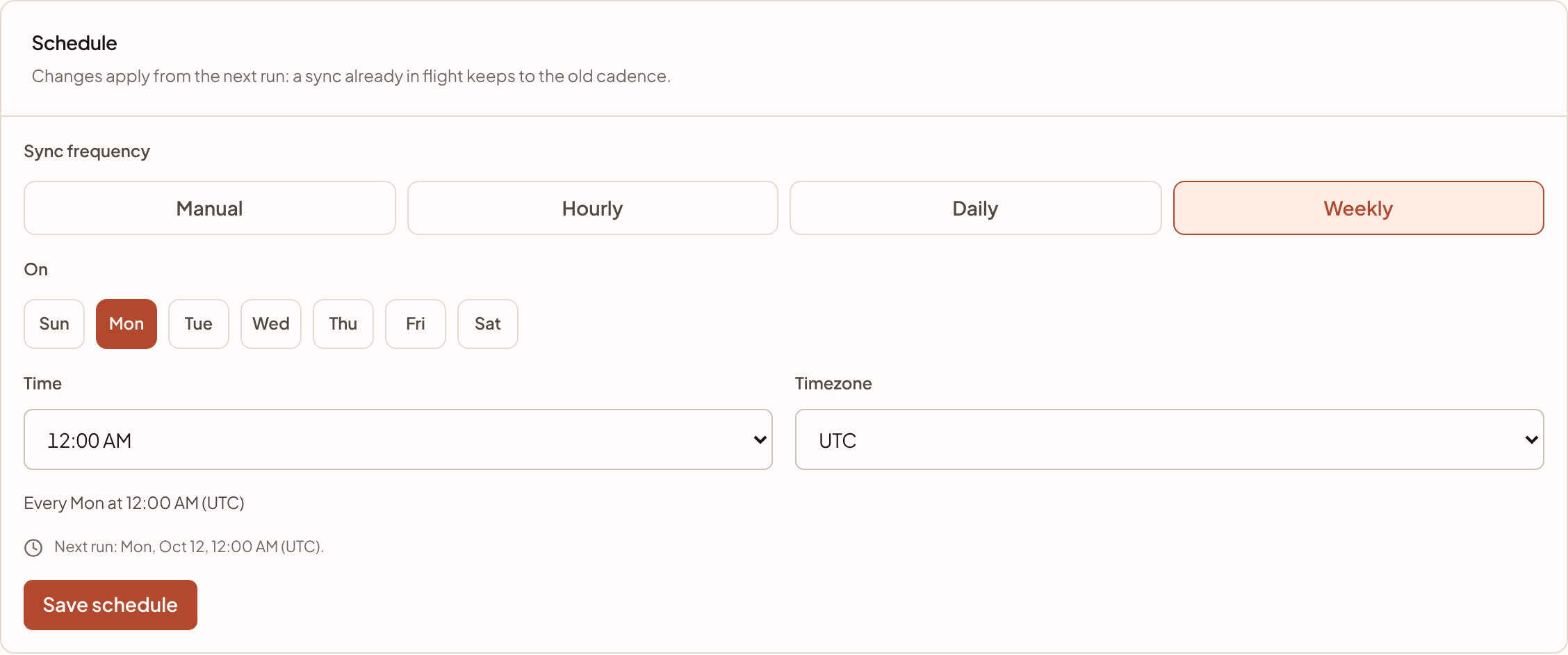
The panel notes that changes apply from the next run, so a sync already in flight keeps to the old schedule. For a connection that is still being set up, it notes that the schedule takes effect once the connection is syncing.
To stop scheduled runs without deleting anything, save the frequency as Manual. The connection keeps its streams and its rows, and runs only when you press Sync now.
When the next run is
The Status tab of a connection shows four figures. When a schedule is set, the last one is Next sync, with the frequency underneath, for example Mon 7:00 AM over Every day at 7:00 AM (Australia/Sydney). Both are written in the schedule's own time zone, the one the frequency names, whatever zone your browser is in. An hourly schedule names its zone the same way, as in Every 6 hours (UTC). Manual connections show Frequency instead, because nothing is scheduled.
See everything on one clock
A sync rarely runs alone. Tasks rebuild your models after it, and reports go out after those. To see all of it together, press Sync times at the top of Data · Connections. It opens Monitor · Pipeline, whose Account schedule panel draws syncs, tasks, model runs, index builds and deliveries on one clock.
- Calendar day shows one day, and Next 24 hours shows a rolling window. The date picker has previous and next day buttons and a Today button.
- The display time zone is your browser's, or UTC. On the two days a year a day is not 24 hours, the panel says daylight saving.
- Action type filters to Syncs, Tasks, Model runs, Index builds or Deliveries. A search box finds one by name.
- Timeline draws a lane for each item. In time order lists every action in order.
- On the timeline, bars are recorded runs and diamonds are future starts from the current schedule. A circle marks something that waits for a sync to finish, such as a task set to run after one. Its exact start depends on how long the sync takes, so it is not fixed.
See Pipeline for the rest of the page, including how to set a task to run after a sync finishes.
What a schedule costs and what can stop it
- Each successful run is metered. A connection that runs hourly makes many more runs than one that runs daily. Pick the slowest schedule that keeps your reports fresh enough. See Usage.
- One run at a time. sanda runs one sync at a time for each connection, and Sync now is disabled while a run is in progress.
- Suspended or at a limit. A workspace whose warehouse is suspended for its budget, or a warehouse that has hit a storage or compute limit, does not run syncs until it is back under. See Usage and suspension.
Something unclear or out of date? Tell us, and we will fix the page.