Create a search service
Choose the table, the key, the text and the filter columns for a search index, review the estimated cost, and start the first build.
A search service, which the console calls an index, covers one table on your semantic map. You choose the columns whose words become searchable and the columns to keep for narrowing a search, see what indexing would cost, and start the first build.
Before you start
- Your edition includes sanda search. Standard and Enterprise do, and so does a trial. See sanda search.
- An owner has switched sanda search on. Until then the page shows sanda search is switched off for this workspace and no index can be created.
- The table is on your semantic map. An index can only cover a table that is on the map. A table sanda has only suggested counts once someone accepts it (see review what sanda proposes), and a table taken off the map does not count. To search a view you built, put it on the map first. See views.
- The table has text in it. A name, a description, a note or a comment. Search matches words, so a table of numbers and dates has nothing to index.
- You are an owner or admin. Members and viewers can search but cannot create indexes.
Create an index
- Open Vector search. In the console, go to Intelligence · Vector search. If you have more than one warehouse, choose the one to index from Search warehouse.
- Press Create an index. The form Create a search index opens.
- Name it. Use lowercase letters, digits and underscores, starting with a letter, up to 63 characters. The name becomes a table in your warehouse, so the field lowercases what you type. The names
estimate,modelsandconsentare taken. - Pick the table. Table lists the tables on your semantic map. Suggestions nobody has accepted yet are not listed.
- Pick the key column. The key identifies a row, so it must be unique and never empty. sanda checks this when you create the index and tells you which it is if not. Every search result carries its key, and keys are how you take results to a query.
- Choose the text to index. Under Text to index, pick between one and 16 columns. Only columns that hold text are offered.
- Choose the filters. Under Filters, pick up to 16 columns to keep beside the text: a status, a region, a date, an amount. They narrow a search but are not searched as words.
- Choose the embedding model, if offered. See below.
- Say what it is for. What it is for is optional. cherry and connected assistants read it, so a good sentence helps them pick the right index.
- Estimate the cost. Press Estimate indexing cost. See below.
- Press Create and index. The first build starts and the index appears in the list.
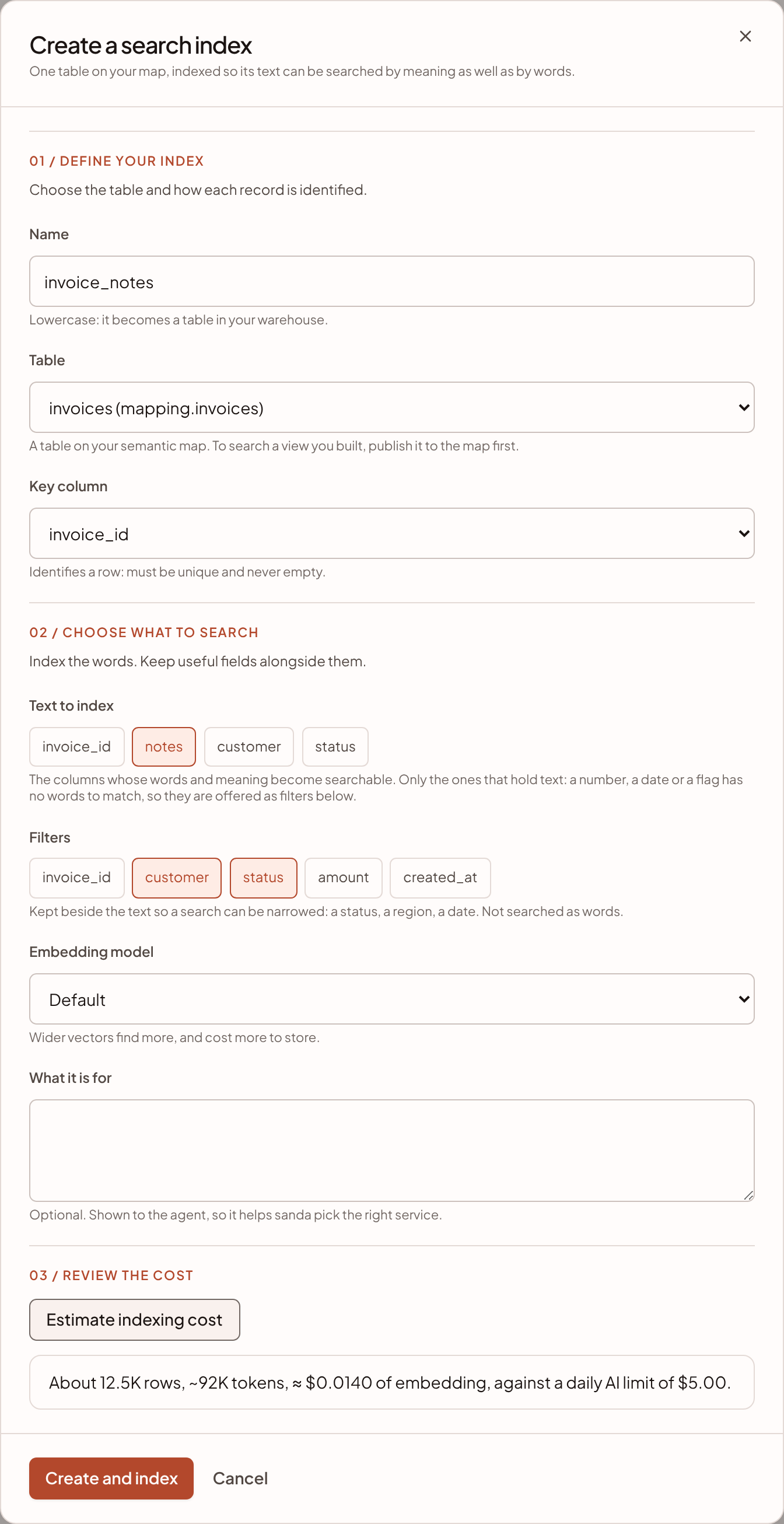
Choosing the text
More text finds more. An index over one short column, such as a product name, gives the search little to work with. Add the description, the category name and the notes a reader would think of as part of the record.
Two rules protect you:
- Secrets are refused. A column whose name says it holds a password, token, key or similar is refused as a key, text or filter column.
- Personal details are flagged. A column under Text to index whose name suggests an email address, phone number, date of birth, salary, address or passport gets a warning, because its text would be sent outside Australia to be indexed. Only text columns are sent, so a column you keep as a filter is not flagged: the warning suggests keeping the column as a filter if you did not mean to send it. Ordinary business text is what this feature is for, so the warning is not a refusal.
A column that is a number, a date or a true or false flag has no words to match, so the text list leaves it out. It is still available as a filter.
Choosing the embedding model
When more than one is on offer, Embedding model appears, and each option shows its name and how many numbers its vectors hold. Leave it on Default for ordinary business text. A wider vector finds more and costs more to store: the larger option stores twice as much per row.
The choice is fixed for the life of the index. Changing it later means indexing again from scratch, because a vector is only comparable to one made by the same model.
Estimate the cost
Estimate indexing cost appears once you have chosen a name, a table, a key column and at least one text column. It reads a small sample of your text and shows the approximate number of rows, the tokens, the cost of embedding them, and your daily AI limit.
It is an estimate, not a quote. If indexing would take more than a day at your limit, it says so. The build then pauses each day at 80% of the limit, so that questions still work, and picks up where it stopped the next day. Searches work on whatever is indexed in the meantime.
Create and index stays disabled until you have seen the estimate. Changing the table, key, text columns or model discards the estimate, so you review the cost of what you are about to create.
Limits
| Limit | |
|---|---|
| Indexes per workspace | 5 on Standard, no cap on Enterprise, a small allowance on a trial |
| Rows in one index | 2,000,000 on Standard, no cap on Enterprise, a small allowance on a trial |
| Text columns | 16 |
| Filter columns | 16 |
| Source | A table on your semantic map |
If your table has more rows than your edition indexes, sanda refuses and suggests narrowing it with a view first. Build a view over the rows you care about, put it on the map, and index that. A view or table sanda has no row estimate for is counted before the check, and an agent that points an existing index at a different table is held to the same limit.
Change or remove an index
The console has no edit form. To change the table, key, text or model, remove the index and create it again. Remove it from Index details, then Remove. That deletes the index from your warehouse, so building it again costs a full first build.
AI assistants you connect over MCP, with the search permission, can change an index in place and set how it stays fresh. See MCP tools. cherry cannot create or change indexes.
If the form will not let you
| You see | What to do |
|---|---|
| Still needs … followed by a list | Fill in what it lists. The button is disabled until you do |
| Review the estimated cost before creating your index. | Press Estimate indexing cost |
| A message that the key is empty on some rows, or repeats | Pick a column that is unique and always set |
| A message that the table is not on the map, or has been taken off it | Put it on the semantic map first |
| A message that the table is only suggested for the map | Accept it on Intelligence · Semantic fluid first. See review what sanda proposes |
| A message that the workspace is at its limit of indexes | Remove one you no longer use |
| A message that the warehouse is at its storage limit | Free space or raise the limit, because an index needs room to write |
Something unclear or out of date? Tell us, and we will fix the page.