Schedules and delivery
Email a report on a schedule with a PDF and a PNG attached, or post it to Slack or a webhook. Set recipients, send now, pause, and see how each run went.
A delivery sends a report on a clock. At each run, sanda asks every block on the report again, so the numbers are current, and sends the answers as an email, a Slack message or a webhook. Nobody has to open sanda, and the recipients need no account.
Owners and admins schedule, change, send, pause and remove deliveries. Other members can see the list and read each delivery's status.
Schedule a report
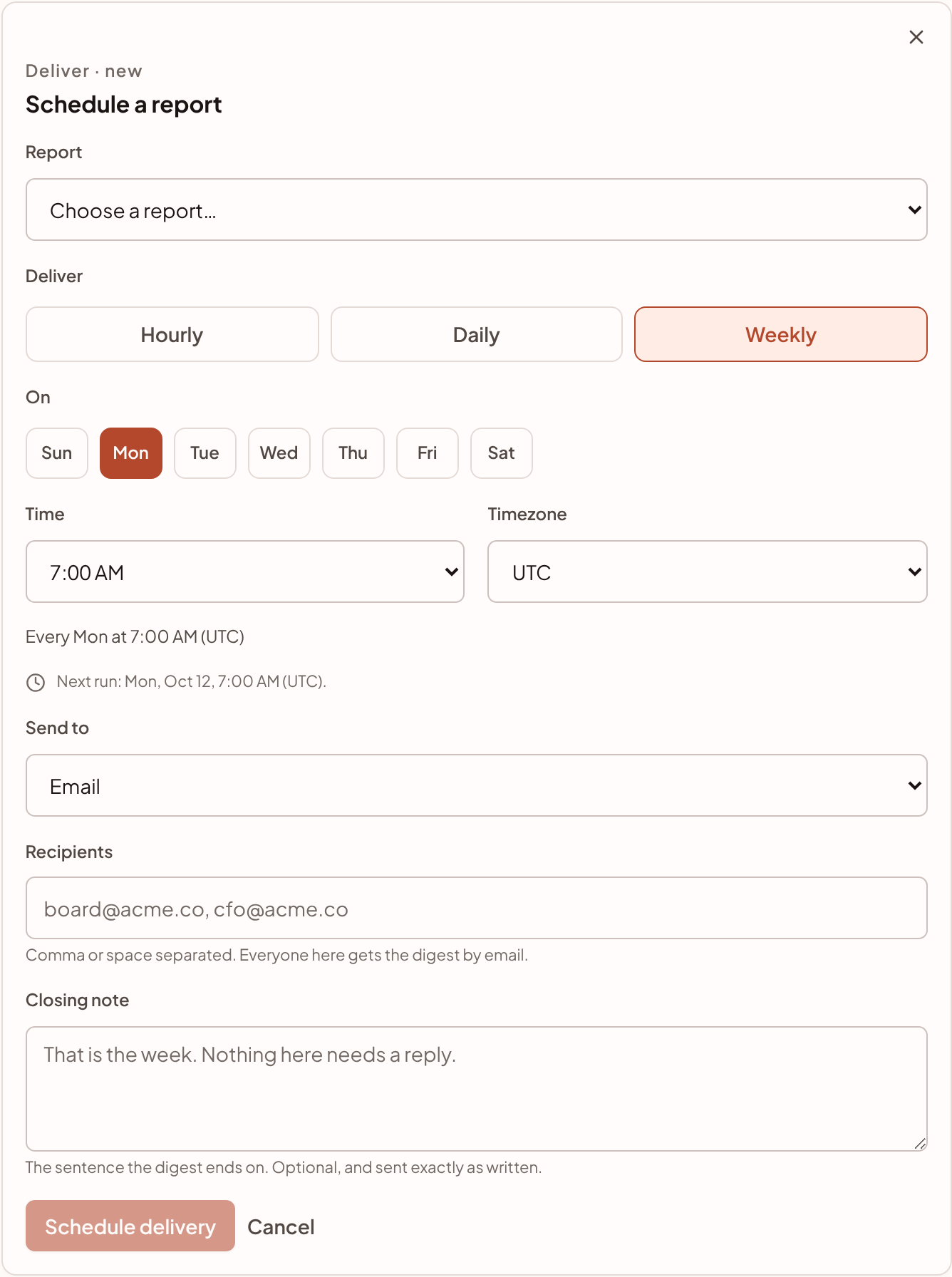
- Open Report schedules. Go to Activate · Reports and press Report schedules. To schedule one report, use the Schedule link on its row in the Reports list.
- Start a delivery. Press Schedule a report.
- Choose the report. A template cannot be delivered, so only real reports are listed.
- Choose when. Under Deliver pick Hourly, Daily or Weekly. For Hourly choose Every hour, Every 6 hours or Every 12 hours. For Weekly tick the days. For Daily or Weekly set a Time and a Timezone. sanda shows the schedule in words and the Next run underneath.
- Choose where it goes. Under Send to pick Email, Slack or Webhook. For email, type the addresses in Recipients, separated by commas or spaces.
- Add a closing note if you like. The Closing note is the sentence the email ends on, up to 500 characters, sent exactly as you wrote it.
- Press Schedule delivery.
The 15 minute grid
Schedules run on a 15 minute grid, so a delivery can only start at :00, :15, :30 or :45. The time list offers only those, so a 9:07 start is not something you can pick. The reason is cost: sanda's scheduler wakes every 15 minutes rather than every minute, so it can rest in between.
A daily or weekly delivery keeps the local time you chose. A 7:00 AM delivery in Australia/Sydney stays at 7:00 AM when the clocks change. The hourly options have no clock time to keep and run on the hour, UTC.
Recipients
- Up to 25 addresses per delivery. Duplicates are removed and addresses are stored in lower case.
- An address that is not valid is dropped, and a delivery with none left is refused.
- If your workspace limits who can receive reports, every address must be at an allowed domain. See limit who can receive reports.
Recipients do not need a sanda account, and they see the same numbers whoever they are. A delivery is not limited by any reader's data rules: everyone on the list sees every row the report shows. An email cannot be recalled once it is sent, so check the list before you press Schedule delivery.
What arrives
An emailed report is the canvas, published. Blocks sit where you put them and are drawn as the canvas draws them, in the report's colours.
- Subject: the report's name and the date, for example
weekly trading · 30 September 2026. - Header: the report's name, your workspace, when the figures were read, and one line saying which report filters apply.
- Blocks: kpis with their comparison and target, bars, lines (drawn as filled columns, because inboxes do not draw charts) and tables in the sheet's own formats. A table shows its first 10 rows. Written analysis appears as saved.
- Closing note: yours, verbatim.
- A link to the live report in the console, which opens for recipients who have a sanda account, and a line saying how often it is sent.
- A plain-text version that says each block in words, for mail clients that prefer it.
No AI writes the email. A scheduled report is a statement of what the data says, so a sentence a model composed about a figure would be a second thing to check. The only words that are not from your data or your team are the ones in the template.
If one block cannot run, for example because a report filter's field does not reach its table, the delivery still goes and that block's section says it did not run.
The PDF and the PNG
An email also carries the report as two attachments: a PDF and a PNG, named after the report and the date. The PDF is a single page exactly as tall as the report, so nothing is cut through the middle of a chart, and the PNG is the same page as an image. They exist so a report can be forwarded, printed or dropped into a board pack exactly as it looked.
The files are a courtesy on top of the email, never the delivery itself. If they cannot be produced, or would make the message too large, the email goes without them, and the PNG is left off before the PDF.
Send now, pause, change and remove
Select a delivery in the list to open its panel. It shows when it runs, its next run, who it goes to, and how the last run went.
| Button | Does |
|---|---|
| Save delivery | Saves changes to the time, the recipients (or the Slack or webhook URL) and the closing note |
| Send now | Sends the report to the delivery's recipients right now, outside its schedule. It goes out within a minute or two. |
| Pause and Resume | Stops the schedule, or restarts it. A resumed delivery next goes at its next slot counted from now. A paused delivery can still be sent by hand. |
| Remove | Deletes the delivery. The report stays, and the record of its past runs stays on the timeline. |
The channel of a delivery cannot be changed. If a report should go somewhere else, make a second delivery.
The list can be searched by report name and filtered to Active or Paused deliveries.
Slack and webhooks
Email is not the only place a report can go. Under Send to, choose Slack or Webhook and paste a URL in place of recipients. Because the URL is a credential, sanda stores it encrypted, never shows it again, and displays only the host and the last six characters so you can tell deliveries apart. To change it, paste a new one in the box marked Replace the ….
| Slack | Webhook | |
|---|---|---|
| URL | A Slack incoming webhook, starting https://hooks.slack.com/ |
An https:// address on a public hostname |
| What is posted | A short summary: the report's name, when it is as at, any filters, each chart's or table's headline (with the top three of a ranking), your closing note and a link to the report. Written analysis is left out, and a long report is cut with a note of how many sections remain | The digest as JSON, written analysis included |
A webhook URL must use the standard HTTPS port, must not carry a user name or password, and must be a public hostname rather than an IP address, localhost or a name that only resolves inside a private network. A delivery URL that breaks these rules is refused when you save it.
The webhook receives one POST per run with a JSON body, and the run's id in an x-becca-delivery header so you can spot and drop a retry you already took:
{
  "type": "report.delivered",
  "version": 1,
  "report": { "id": "…", "name": "weekly trading", "description": "…", "url": "https://console.sanda-os.com.au/app/reports/…" },
  "workspace": { "name": "Acme Services", "slug": "acme-services" },
  "run": { "id": "…", "trigger": "schedule", "scheduled_for": "2026-09-28T21:00:00.000Z" },
  "generated_at": "2026-09-28T21:00:04.000Z",
  "timezone": "Australia/Sydney",
  "cadence": "Every Mon at 07:00 Australia/Sydney",
  "filters": ["issued date in the last 7 days"],
  "note": "That is the week. Nothing here needs a reply.",
  "sections": [
    { "id": "…", "kind": "kpi", "shape": "figure", "title": "net revenue", "lead": ["482,000 net revenue"], "rows": [] }
  ]
}
Each section is one block in canvas order, already formatted in the metric's own units. shape says what the rows turned out to be: figure, series, ranking, table, text or note. There are no raw result sets in the payload. A receiver that wants the rows asks the semantic fluid for them, where the reader's own access applies.
Any 2xx answer counts as delivered. A redirect, or a 4xx other than 408 and 429, is treated as a final refusal: sanda does not retry it and tells you to paste a new URL. A 5xx, a 408, a 429, a timeout or a dropped connection is retried. sanda waits ten seconds for an answer.
Slack and webhook deliveries are not covered by the recipient-domain limit, since they have no address to check.
Limit who can receive reports
An owner or admin can restrict which addresses a delivery may email. Go to Settings · Security, find Report delivery and enter Recipient domains, separated by commas or spaces, such as acme.com.au. Subdomains count, so finance.acme.com.au is inside acme.com.au. Leave it empty to allow any address.
The limit is checked when a delivery is created or changed and again at each send, so a list set after a delivery was scheduled still holds: recipients outside it are left out of that run. A run with nobody left is refused.
See how each run went
- On the Report schedules page, each delivery shows its status: live, paused, or failing when its last run failed, with the reason. (The list beside it says active, paused or failed.)
- Monitor · Pipeline draws every delivery as a bar on the report's row of the timeline, next to your syncs and tasks, coloured by outcome. Hover a bar to see whether it was sent, what triggered it (the schedule, or someone pressing Send now), when, how many recipients, the subject and any error. The delivery's panel there has Manage in Reports.
When a delivery fails
A failed run is recorded with its reason, and the delivery keeps its schedule, so the next slot still goes. Owners and admins are emailed about it once a day for each delivery, however many runs fail, with the reason and a link to the Pipeline page. Typical reasons are a report that was deleted, no recipient inside the allowed domains, a suspended workspace, or an email that could not be sent.
That email follows the alert switch under Settings · Plan & budget, in Budget & alerts: When a scheduled run fails, or pauses itself after failing repeatedly. It is on by default. You can add extra addresses to Also send to there.
Schedule with cherry
cherry can schedule, change, send, pause and remove deliveries when you ask in plain words. It always asks you to confirm before it schedules, changes, sends or removes a delivery. See Build reports with cherry.
An AI assistant connected over MCP with the report-delivery permission can do the same. Only an owner or admin can grant that permission, because a delivery puts a copy of your numbers in someone's inbox.
Something unclear or out of date? Tell us, and we will fix the page.